Showing posts with label Android Tips and Tricks. Show all posts

Friday, 24 May 2013

Keep Gmail secure with two-factor authentication


This isn't an Android-exclusive tip, since Google authentication also works with iOS and BlackBerry devices. But since it comes from Google, we figure it's okay to include here.
Two-factor authentication adds an extra layer of security for your Google account beyond just a password. With two-factor authentication enabled, bad guys would have to know your password and physically possess your phone to gain access to your mail and information. To set it up, download the "Google Authenticator" app, then enable Google's "two-step verification" for your account. You'll be prompted to pair your phone with your account using either a QR code or a manual entry. From that point on, when you're signing in to Google, you'll also have to enter a verification code that Google sends to the Authenticator app on your phone.
For some people, this may seem like overkill -- but you can always tell Google to trust certain computers (such as your home and work computer, if you frequently use them to sign on to your Google account). That way you won't be prompted to pull out your phone every time you need to use Gmail, but Authenticator will still activate if someone tries to access your account from another computer.

Easter egg (Ice Cream Sandwich and Jelly Bean)


This one's not really a "tip" per se – it certainly won't make you more productive – but it's a fun easter egg hidden inside Ice Cream Sandwich and Jelly Bean. If you've got a phone running Android 4.0 or higher, head into Settings and click "About  phone" at the bottom of the list. On the next page, start tapping the "Android version" button (you have to do five or six very quick taps). In Ice Cream Sandwich you'll see the familiar Android robot wearing an ice cream sandwich getup. Press and hold, and it'll explode, releasing tiny flying clones across your screen. In Jelly Bean you'll see, well, a Jelly Bean. Press and hold and you'll get a screen of floating jelly beans which can be dragged around. Useful? Nah. Endearing? Absolutely!

For power users: automate everything with Tasker


We're almost at the end of the list – it's time to reward those power users who are looking for a way to really get the most out of their devices. If you don't mind a fairly steep learning curve (and a $6.49 price tag), the Tasker app is the best way to make your smart phone smarter. The program uses "states" and "tasks" to automatically respond to all sorts of situations. So, for example, you could tell the phone to automatically mute its ringer when it's turned facedown. Or you could have it turn on GPS when certain applications (like Google Maps or Navigation) are active, then turn it back off when those apps close to save juice. Or you could have the phone's screen automatically dim to a preset level after 10 p.m., so you don't blind yourself if you have to take a call in the middle of the night. Or you could automatically bring up a list of music apps when you insert headphones into your phone or tablet. Or you could automatically mark your GPS location when you get out of your car, so you don't forget where you parked later. The possibilities are pretty much endless. Check out this video of a Lifehacker blogger using Tasker to create the ultimate alarm clock, complete with fading music and a personalized greeting.

Customize your screen with Minimalistic Text


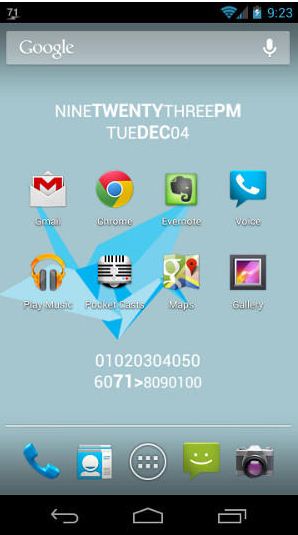
Here's another app suggestion for power users: Minimalistic Text (free; paid version available) allows you to tweak your home screen to show all sorts of info, configured just how you like it. As the name implies, you could add an unobtrusive battery meter down at the bottom of the screen -- or you could add a big, bold digital clock, complete with the day of the week and the full date, right in the middle of everything. Minimalistic Text lets you show your info in different colors, with different orientations, and in just about any format you could imagine. The app has a fairly steep learning curve, but it's one of the best ways to exert control over the way your device looks, without having to root it. If you're really willing to get your hands dirty, you can try combining Minimalistic Text with Tasker (tip #30) to display custom information like how many unread messages you have.

Put Dropbox folders on your home screen


You might already know about Dropbox, a service that gives you 2GB of free cloud storage (more if you refer other people to the service, or if you pay a monthly fee) to keep your files synced online and between devices. Install it on your laptop and your phone – any files you put into it on one device are automatically synced over to the other. It even works with pictures: theAndroid app can automatically send photos from your phone's camera to a Dropbox folder for later sorting and posting.
You can also add individual Dropbox folders to your phone's homescreen as widgets for quick access. Once you've installed the Dropbox app, you can drag as many different folders as you want to a homescreen to get at whatever's inside at a moment's notice.

Break out battery usage by task/app


If you're having trouble getting your phone to last through the day on a charge, Android makes it easy to figure out where to get power savings. Head over to the battery section of the settings screen. You'll see a graph of the battery's discharge rate, and a list of running apps and services ordered by how much power they've been sipping (or guzzling). On many phones, the screen is the biggest culprit, so maybe you'll want to turn down the brightness to save some juice. Or perhaps there's one app that's chugging away in the background, chewing up battery , that you'll want to kill. Just click on that app, and click "Force stop" on the following screen.

Live video effects


Here's another entry in the "not super useful, but definitely super fun" category: Ice Cream Sandwich and Jelly Bean give you a few nifty effects to employ when you're taking a video. Add a background to make it look like you're in space or standing in front of a sunset. Or give yourself huge eyes, a swollen nose, or a scrunched head. The effects all work surprisingly well – they're a good way to make a goofy video for a friend. Just select the options menu from the camera app and you'll find the effects nestled in there with other controls like color and exposure.
If you're not on Ice Cream Sandwich or Jelly Bean, check out the free Videocam Illusion app – it'll give you a lot of the same features.

Paying -- and sharing info -- with a bump


NFC (Near Field Communication) is a relatively new standard that lets you bump your phone against a sensor (or another phone) to share information or make a payment. Although it's widely used in Asia and some European countries, the technology isn't very widespread in the US – only a few phones stateside sport the technology, and payment sensors are still few and far between.
NFC-enabled phones, such as the Samsung Galaxy Nexus and Galaxy S II and the LG Optimus LTE, can share videos, websites, and apps with each other wirelessly (by bumping two phones together) or pay for things using Google Wallet or the forthcoming ISIS system.
If you don't have an NFC-enabled phone, don't fear – an app called Bump lets you share photos and info between phones in pretty much the same way. Bump can be a little flaky sometimes, and it doesn't support wireless payments, but the upshot is that it's cross-platform, so you can share things with your iPhone buddies, too.

Type using emoji


Android already had pretty good support for basic emoticons -- the smiley face, the winky face, and so forth. But now Jelly Bean users (Android 4.1 and 4.2) can make their texts even more expressive with the addition of better emoticons (or emoji, as some call it). To enable emoji, go to the "Language and Input" section of the Settings app. Click the settings icons next to the "Android keyboard" option, then select "Add-on dictionaries." Add "Emoji for English words," and you'll be able to add emoji for certain words like "snowflake," "sailboat," and a whole bunch of others (complete list here).

Wirelessly syncing music


You may have heard about Google Play, a recently-released online store for music, movies, books, and games. You can buy lots of cool stuff through Play, but for this tip we'll focus on something you can do for free: access your music anywhere. Similar to the iCloud service on iOS platforms, Google Play lets you upload your music (up to 20,000 songs) to the cloud to be enjoyed wherever, for free. So you don't need to worry about syncing your phone with your laptop every time you buy or rip a new album. Just be careful about network streaming if you're on a metered data plan (to avoid overage charges, you can always set Google Play to stream only over Wi-Fi).
If you don't want to get too tied up in the Google ecosystem, there's another elegant way to accomplish pretty much the same thing: DoubleTwist Airsync. The program has two parts: the first is an iTunes-like desktop client that functions as a multimedia player. The second is a mobile client application that lets you stream to and from the computer. So if you download an album on your computer, it'll automatically sync to your phone, and vice versa.

Widgets on the homescreen


Android does a pretty good job of letting you use your homescreen real estate in whatever way is most useful to you. You can opt for the straight-up grid of applications, of course, but you can also get all sorts of information at a glance from that space. By default, Android lets you put up a big analog or digital clock, weather info (updated based on your location), a Google search bar, a quick overview of your calendar, and all kinds of other information. And a lot of the apps that you download (like Dropbox, which we'll dive into in just a moment) will give you other widget options. Just select the "widgets" tab from the list of applications and drag whatever you like onto your home screens. If you're running Ice Cream Sandwich, you can even resize these widgets at will.

Take a screenshot (Ice Cream Sandwich/Jelly Bean)


For a long time, the only way to take a screenshot on an Android phone involved rooting the device (a process similar to jailbreaking an iPhone) and installing specialized software. Thankfully, that's no longer the case in Ice Cream Sandwich and Jelly Bean. Just press the power and volume-down buttons simultaneously. The screen will flash and a screenshot will be saved in your phone's photo gallery.
If you're on Froyo, Gingerbread, or Honeycomb, you might still be able to take a screenshot without special software -- sometimes manufacturers build screenshot shortcuts into handsets and tablets. If your device doesn't have this ability and you don't want to root it, try No Root Screenshot It -- you'll have to connect your phone to a computer to enable screenshots each time you restart the phone, but the app does exactly what its name promises.

Download a map (Jelly Bean)

Google Maps integration is undoubtedly one of the best parts of owning an Android device. The service is every bit as reliable as its desktop counterpart, and offers accurate turn-by-turn directions to boot. But obtaining all that map data requires a data connection, and sometimes that's a dicey proposition when you're in an area with spotty coverage -- or when you're nearing the upper edge of a capped data plan. For those situations, Jelly Bean lets you download maps ahead of time so you can consult them offline. When you're on a Wi-Fi network (or in an area with a good data network), click the three dots in the lower-right of Google Maps and select "Make available offline." You'll be able to select the area you want to save, and Google will download the map for you to pore over later at your leisure.

Browser "quick controls"

If you're a Gmail user, you're probably familiar with Labs, nifty experimental features that extend the program's functionality. This model extends to the stock web browser on 4.0 Ice Cream Sandwich, and 3.1 Honeycomb, as well. From the browser's settings page, click "Labs," then enable “Quick Controls” on the following screen. The URL and status bars will disappear from the phone's top edge, giving you a little more screen real estate. If you want to open a new page, access settings, or do a web search, just put your thumb on the far left or right edge of the screen – a circular menu will open up giving you navigation options.

Inverted rendering


We know we just suggested installing the Chrome browser, but if you find the stock browser more to your taste, here's a tip that could save you some battery life and eye fatigue. From the browser's Settings page, tap "Accessibility," then hit "Inverted rendering." That options  switches the colors so black becomes white and vice versa -- in theory, that makes the screen darker overall so the battery isn't working to pump out so much light. It's easy on the eyes, too, especially when you're reading at night. Once you've inverted the rendering you can drag the contrast slider up and down to get things looking just right.

Give Google Chrome a try


If you're one of the lucky few users who has the latest version of Jelly Bean (Android 4.2), you'll already have Google Chrome installed as your default browser. 
But everyone else can download it for free from the Google Play store. Chrome offers a number of improvements over the stock Android browser, including faster performance (though your mileage may vary), better syncing with your Google account, and the ability to sync bookmarks and open tabs from the desktop version of Chrome. Chrome also enables you to switch quickly between open tabs by swiping inward from the right or left side of the screen.

Edit your photos -- or grab them from a video


It won't replace Photoshop anytime soon, but your Android device is capable of doing some basic photo editing that can make your shots look a lot better. From the photo gallery, just tap "Edit" in the dropdown menu. You can adjust a shot's exposure, add effects like "Fisheye" and "Film grain," crop, take out red-eye, and even adjust saturation and tint. Send the results to the social network of your choice, or choose to have them auto-uploaded to a photo service like Picasa – or to Dropbox, using the previous tip.
Ice Cream Sandwich and Jelly Bean offers another cool picture trick: taking a still frame from a video. While you're shooting, just tap the frame to take a snapshot. It'll be automatically added to your camera roll. If you're still running Gingerbread or lower, don't worry. The $2.99Frame Grabber app will give you the same ability, albeit after the video is taken

Control your computer with your phone (or tablet)


This nifty app lets you control your computer with your phone. It's really two programs: a client that runs on your laptop or desktop, and a lightweight remote app for your phone or tablet. Once you've got everything up and running, you can create customized remotes to control just about everything on your computer. 
Out of the box you get mouse and keyboard support, volume and media control, and the ability to bend programs like Spotify and Windows Media Player to your will. Upgrade to the premium version ($4), and you can control just about everything – including your browser and media player of choice.

Put your information on the lock screen (Jelly Bean)

If you've ever found someone’s lost phone, you know that it can be a hassle to try to get it back to him or her. Most times, you just have to scroll through their address book for a hint of how to contact them (or one of their family members). Android 4.1 and 4.2 users have the option to make things a little bit easier for potential do-gooders. They let you post your contact information on the phone's lock screen. From the Settings app, tap "Security" and look under the "Screen security" section for "Owner info." Tap that, and you'll be able to enter a name, email address, phone number, or any other appropriate info that will show up on the phone's lock screen.

Google Sky Map


This is undoubtedly one of the coolest free apps you can download. Just launch Sky Map, and point your phone to the heavens (or any direction at all, really). For the most mind-blowing results, you'll want to be outside at night, but it'll work during the day, too. You'll see a map of the constellations, planets, and Messier objects that currently occupy the portion of space at which your phone is currently pointing. The app will even point out meteor showers while they're happening.
(Did we mention it's Android-only? iOS has a few less interesting and more expensive options.)
Oh, and it does time-travel, too. Star Maps can show you what the sky will look like in the future, or what it looked like in the past, as far back as 1900. Ever wonder what the sky looked like the night of the Apollo 11 moon landing? Now you can find out, in more detail than you probably wanted to know.